Screen Time Savvy: How to Inspect and Buy a Pre-loved Tablet Like a Pro
Tech & Smart Devices
📅 2026. 03. 18.
Thinking of grabbing a bargain for your Netflix binges or digital sketching? Our guide shows you how to test a used tablet and avoid common pitfalls.
Why Go Pre-loved?
In an age where new tech prices seem to climb every single month, looking at the second-hand market isn't just a choice—it's a smart financial move. Whether you need a device for the kids' schoolwork or a portable screen for your commute, you can often find high-spec models at a fraction of their original cost. However, unlike buying new, you need to be a bit of a detective. If you want to stay ahead of the curve, checking out our Tech & Smart Devices magazine section is a great way to keep up with current trends before you commit to a purchase.
The Physical "Eye Test"
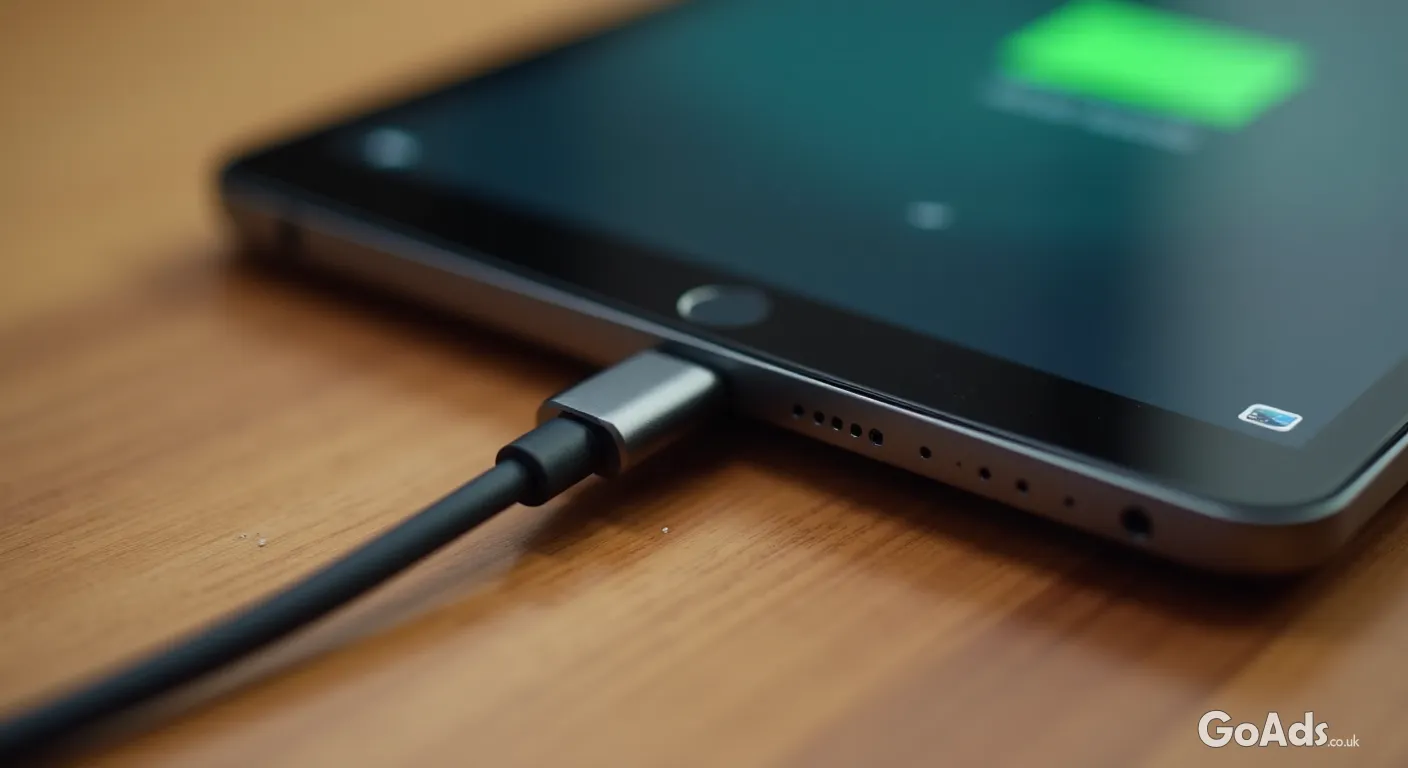
Before you even turn the device on, give it a proper once-over. Look for any signs of "bloating" on the back or screen—this often indicates a swelling battery, which is a major red flag. Check the corners for dents; a heavy drop can loosen internal components even if the glass looks fine. Don't forget to peek into the charging port and headphone jack for lint or corrosion.
The Exterior Checklist
Check for hairline cracks that might be hidden by a screen protector.
Ensure the volume and power buttons have a satisfying "click".
Look for discolouration around the edges of the chassis.
Verify that the camera lenses are clear of internal dust or moisture.
Testing the Display
The screen is the most expensive part of any tablet. Once you power it up, turn the brightness to maximum and open a completely white image. This is the easiest way to spot "dead pixels" or yellowing patches. If you are browsing for specific models, you can find a wide variety of options in the used tablets and e-books category to compare prices and conditions.
Pro Tip: Open a notes app and draw lines across the entire screen with your finger. If the line breaks, you've found a "dead zone" in the touch digitiser.
The Battery Health Dilemma
Unlike laptops, tablets don't always make it easy to see battery cycle counts. If possible, ask the seller to show you the battery health percentage in the settings. If the device drops 5% in the ten minutes you are inspecting it, the battery is likely on its last legs. Factor the cost of a replacement into your offer, or walk away if it seems too risky.
Software and Security Locks
This is the most critical step. Ensure the seller has signed out of their iCloud or Google account and that "Find My Device" is disabled. If a tablet is "activation locked," it is essentially a very expensive paperweight. Always ask the seller to factory reset the device in front of you so you can see it boot up to the "Welcome" screen.
Don't Forget the Extras
A bargain tablet becomes less of a deal if you have to spend another £50 on a charger and a protective case. Always ask if the original box and accessories are included. If you do find a "naked" tablet at a great price, you can always pick up the bits you need by searching for mobile and tablet accessories later on.
The "Must-Do" Connectivity Test
Connect to a Wi-Fi hotspot to ensure the antenna is working.
Pair a set of Bluetooth headphones to check the wireless chip.
If it's a cellular model, pop your SIM card in to verify it isn't network-locked.
Play a YouTube video to test the speakers at full volume.
Always meet in a safe, public place with Wi-Fi—like a local café—so you have the time and connectivity to test the device properly.
The Final Verdict
Buying second-hand tech is brilliant for the planet and your pocket. By taking fifteen minutes to run through these checks, you remove the gamble and ensure your "new-to-you" tablet will serve you well for years to come. Happy hunting!











 Secure buying and selling
 Terms of Use
 GoAds.co.uk Facebook